
How to Create an Azure Diagram: Architecture Examples, Steps, and Best Practices
To create an Azure diagram effectively, start with the architecture you need to communicate, not with a collection of Azure icons.
An effective Azure diagram should make it easy to understand what services are being used, how they communicate, where network and security boundaries exist, and how data moves through the system.
For a simple web application, for example, a useful Azure architecture diagram might show users connecting through Azure Application Gateway to Azure App Service, with the application communicating with Azure SQL Database, Azure Storage, Key Vault, and Azure Monitor.
Microsoft's Azure Architecture Center recommends using architecture diagrams to communicate design decisions and relationships between workload components. Its current guidance also emphasizes choosing diagram types according to the message, audience, and lifecycle stage rather than trying to represent everything in one oversized diagram. See Microsoft's guide to architecture design diagrams.
This guide explains how to create an Azure diagram from scratch, what components to include, which diagram types to use, how to structure Azure networks and application architectures, and how to choose the right diagramming workflow.
Cloud Architecture
Create cloud architecture diagrams for AWS, Azure, GCP, and more. Design scalable infrastructure with professional cloud icons.
Learn how to create an Azure diagram with practical architecture examples, Azure services, network layouts, official icons, best practices, and diagramming tools.
Click Cloud Architecture to open AI Line Studio and generate diagrams from natural language in seconds.
What Is an Azure Diagram?
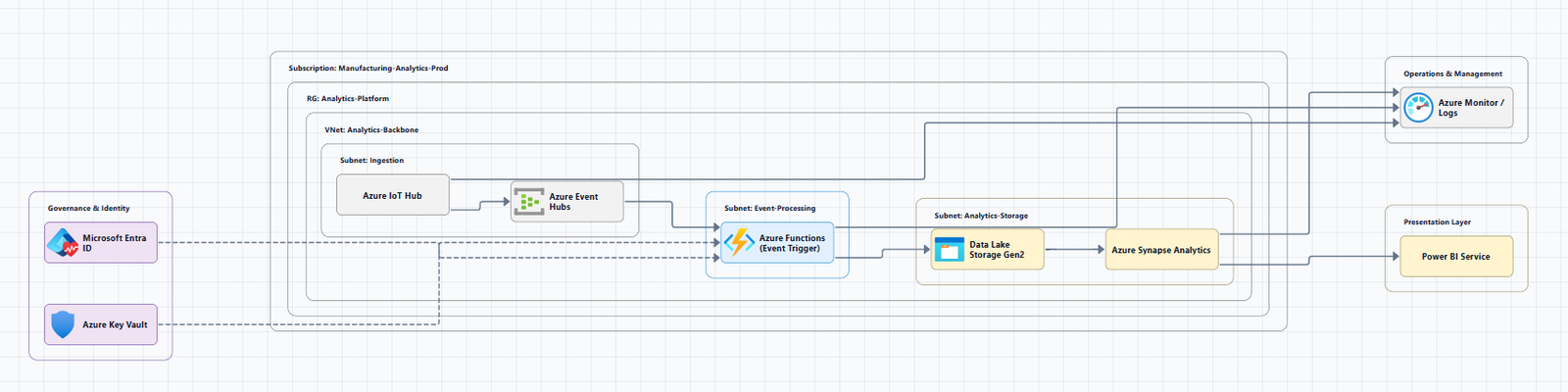
An Azure diagram is a visual representation of an application, infrastructure, network, data flow, or solution deployed on Microsoft Azure.
An Azure diagram can show Azure services, application components, network boundaries, subnets, data stores, security controls, identity services, external systems, data flows, dependencies, regions, availability or resilience patterns, and hybrid connectivity.
The purpose is not simply to make a cloud architecture look organized. A good diagram gives engineers, architects, security reviewers, operations teams, and stakeholders a shared view of how the system works.
Microsoft's Well-Architected guidance notes that architecture diagrams help teams communicate design intent, expose risks earlier, and establish a shared mental model. It also recommends using different diagram types for different architectural questions.
What Should an Azure Architecture Diagram Show?
A useful Azure architecture diagram usually answers five questions:
- Who or what connects to the system?
- Which Azure services run the workload?
- How do those services communicate?
- Where are the security and network boundaries?
- Where does data enter, move, and leave the system?
Users
  ↓
Application Gateway
  ↓
Azure App Service
  ├── Azure SQL Database
  ├── Azure Blob Storage
  ├── Azure Key Vault
  └── Azure Monitor
The actual diagram can be more detailed, but the underlying model should remain understandable.
A simple Azure architecture diagram
graph LR
    Users[Users] --> Gateway[Azure Application Gateway]
    Gateway --> App[Azure App Service]

    App --> SQL[Azure SQL Database]
    App --> Storage[Azure Blob Storage]
    App --> KeyVault[Azure Key Vault]
    App --> Monitor[Azure Monitor]
This is a conceptual example. A production architecture should reflect the actual workload's networking, security, availability, identity, and data requirements.
Azure Diagram Types You Can Create
There is no single "correct" Azure diagram. The right diagram depends on what you are trying to explain.
Microsoft's current Well-Architected guidance describes several useful architecture views, including context, system/container, deployment, data-flow, sequence, network connectivity, state, and flow diagrams.
1. Azure solution architecture diagram
A solution architecture diagram provides a high-level view of the complete workload, users, Front Door, Application Gateway, App Service, Azure Functions, Azure SQL, Storage, Key Vault, Monitoring, and external services.
Use this diagram when stakeholders need to understand the overall solution.
2. Azure network diagram
An Azure network diagram focuses on connectivity: Azure Virtual Network, subnets, Network Security Groups, Azure Firewall, Application Gateway, VPN Gateway, ExpressRoute, Private Endpoints, VNet peering, Private DNS, and internet ingress and egress.
A network diagram should emphasize boundaries and traffic paths rather than application business logic.
3. Azure application architecture diagram
An application architecture diagram focuses on software components and their relationships, frontend, API, Entra ID, databases, storage, queues, and workers. This is useful for developers and solution architects.
4. Azure data-flow diagram
A data-flow diagram focuses on how information moves through the workload, sources, ingestion, processing, storage, analytics, and reporting. Use this when the important question is where the data goes.
5. Azure deployment diagram
A deployment diagram shows where software components run across production regions, application tiers, data tiers, monitoring, and external dependencies. Useful for DevOps, infrastructure planning, deployment architecture, environment design, and scaling discussions.
6. Azure identity and security diagram
Security architecture deserves its own view when identity and trust relationships are important, Microsoft Entra ID, managed identities, Key Vault, Azure Firewall, WAF, private endpoints, NSGs, and security monitoring.
Do not overload a general architecture diagram with every security control. A dedicated security diagram is often easier to review.
How to Create an Azure Diagram Step by Step
The easiest way to create a useful Azure diagram is to work from the architecture outward.
Step 1: Define the purpose
Before opening a diagramming tool, answer: What should this diagram explain? Overall Azure solution, network connectivity, application architecture, data flow, security architecture, disaster recovery, hybrid connectivity, or Kubernetes deployment.
If you cannot describe the purpose in one sentence, the diagram is probably not scoped tightly enough.
Step 2: Identify the audience
| Audience | Useful diagram |
|---|---|
| Executives | High-level solution diagram |
| Solution architects | System architecture |
| Network engineers | Network connectivity diagram |
| Security engineers | Identity/security architecture |
| Developers | Application/component diagram |
| DevOps engineers | Deployment/infrastructure diagram |
| Data engineers | Data-flow architecture |
| Operations teams | Operational/resilience diagram |
Step 3: List the Azure services
Create a simple inventory before drawing. Don't add a service just because it has a recognizable Azure icon. Every component should have a purpose.
Step 4: Group services into logical layers
A useful starting structure is: Users → Ingress → Application → Data → Security / Identity → Monitoring.
For more complex architectures, use boundaries such as Azure subscription, resource group, region, availability zone, virtual network, subnet, application layer, data layer, and security boundary.
Step 5: Draw the primary traffic flow
Start with the most important path, then add secondary relationships such as Key Vault, Storage, Monitoring, and Message Queue.
Step 6: Add network boundaries
For architectures involving Azure networking, show virtual networks, subnets, internet boundaries, private endpoints, gateways, firewalls, network security controls, and hybrid connections.
Step 7: Add security and identity
Show identity and security where they affect architecture. Do not represent security simply by adding a lock icon, show the actual security relationship when it matters.
Step 8: Add data flows
Label important connections (HTTPS, SQL, API, Event, Message, Replication, Private connectivity) when they clarify the architecture.
Step 9: Add monitoring and operations
Production architecture diagrams often benefit from showing observability: Azure Monitor, Application Insights, Log Analytics, alerts, security monitoring, backup, and disaster recovery.
The Azure Well-Architected Framework treats operational excellence, reliability, security, cost optimization, and performance efficiency as architectural concerns that should influence design decisions.
Step 10: Review the diagram
Before publishing, ask whether someone can understand the architecture in 30 seconds, whether major components and relationships are clear, whether network and security boundaries are obvious, whether external dependencies are shown, whether arrows are understandable, whether the diagram is too crowded, and whether it matches the actual implementation.
If the answer to several questions is no, simplify it.
Create an Azure Diagram Example: Three-Tier Web Application
A common Azure architecture is a three-tier web application with users, web/application layer, API/business logic, and database layer.
An Azure implementation could use Azure Application Gateway, Azure App Service, Azure SQL Database, Azure Blob Storage, Microsoft Entra ID, Azure Key Vault, and Azure Monitor. See Microsoft's Azure web app architecture guidance for first-party reference patterns.
The diagram should be adapted to the actual architecture rather than copied as a production blueprint.
Create an Azure Diagram for Microservices
Microservices architectures benefit from showing service boundaries and communication paths across an API gateway, multiple services, per-service data stores, and messaging such as Azure Service Bus.
For an Azure implementation, individual services might run on Azure Kubernetes Service, Azure Container Apps, Azure App Service, or Azure Functions. The diagram should identify the actual compute platform rather than treating all containers or services as interchangeable.
Create an Azure Diagram for AKS
An Azure Kubernetes Service architecture diagram should distinguish the Kubernetes layer from surrounding Azure infrastructure, Application Gateway, AKS cluster services, SQL, Storage, and Monitor.
For a detailed AKS architecture, additional elements may include node pools, pods, ingress, Container Registry, managed identities, network configuration, secrets, autoscaling, and monitoring. Only include them when they contribute to the diagram's purpose.
Create an Azure Diagram for Serverless Applications
A serverless architecture can be represented around events and managed services: User → API Management → Azure Functions → Blob Storage / Service Bus → Worker Functions → Cosmos DB, with Azure Monitor for observability.
This type of diagram is useful for explaining asynchronous workflows.
How to Create an Azure Network Diagram
Network diagrams need more precision than simple application diagrams. A good Azure network diagram should make boundaries and connectivity obvious.
Start with the network boundary (Internet → Azure Virtual Network → Application Subnet / Data Subnet / Gateway / Security), then add actual services.
For more advanced designs, you may need to represent hub-and-spoke networking, VNet peering, VPN Gateway, ExpressRoute, Private Link, Private DNS, Azure Firewall, Network Security Groups, route tables, internet ingress/egress, and on-premises connectivity.
Microsoft's Azure Architecture Center provides Azure architecture examples for these types of workloads.
Azure Diagram Components to Know
| Category | Common Azure services |
|---|---|
| Identity | Microsoft Entra ID, Managed Identities |
| Networking | Azure Virtual Network, Application Gateway, Front Door, Azure Firewall |
| Compute | Virtual Machines, App Service, Functions, AKS |
| Containers | AKS, Container Apps, Container Registry |
| Databases | Azure SQL Database, Cosmos DB |
| Storage | Azure Blob Storage, Files |
| Integration | Service Bus, Event Grid, API Management |
| Security | Key Vault, Defender for Cloud, Firewall |
| Monitoring | Azure Monitor, Application Insights, Log Analytics |
| Data | Data Lake Storage, Data Factory, Databricks |
| Messaging | Service Bus, Event Hubs |
| Backup/DR | Azure Backup, Azure Site Recovery |
The specific services should always be selected according to workload requirements.
How to Use Azure Icons in Your Diagram
Microsoft provides an official Azure architecture icons collection for use in architecture diagrams and documentation. The current collection includes Azure product icons and has been updated with additional icons in July 2026.
Microsoft recommends keeping the product name close to the icon, using icons as they appear within Azure, and not cropping, flipping, rotating, or distorting the icon shape.
A useful rule is: Use the icon to reinforce the architecture; don't let the icon replace the architecture. A diagram containing 50 Azure icons can still be difficult to understand if its relationships and boundaries are unclear.
Azure Architecture Diagram Best Practices
- Start with the system boundary, Show what is inside the workload and what is external.
- Show only meaningful components, Five clearly labeled services may communicate more than 40 tiny nodes.
- Use logical grouping, Network, application, data, security, monitoring, or region, subscription, VNet, subnet.
- Use consistent flow direction, Left-to-right for request flows; top-to-bottom for layered architectures.
- Label important connections, HTTPS, SQL, API, Event, Message, Replication, Private connectivity.
- Separate architecture views, Context, solution, network, data-flow, security, and deployment diagrams.
- Include nonfunctional concerns when relevant, Reliability, security, performance, cost, operations, recovery, compliance.
Common Azure Diagram Mistakes
- Starting with icons instead of requirements, Start with requirement → components → relationships → boundaries → visual design.
- Creating one diagram for everything, Architecture, network, security, and deployment diagrams have different purposes.
- Missing network boundaries, A network-focused view should make connectivity and boundaries visible.
- Using unexplained arrows, Label lines so readers don't have to guess.
- Using outdated service names, Review current Microsoft documentation.
- Treating an architecture diagram as proof of correctness, Review against requirements, security, network, availability, performance, data, operations, and cost.
- Making every component equally prominent, The most important relationships should be easiest to see.
What Tool Should You Use to Create an Azure Diagram?
| Need | Best-fit approach |
|---|---|
| Official Azure templates | Microsoft Visio |
| Custom visual diagrams | Visual diagramming platform |
| Collaborative diagramming | Online collaborative canvas |
| Architecture documentation | Diagram + Markdown/documentation workflow |
| Fast architecture generation | AI diagramming |
| Complex manual layouts | Canvas-based diagramming |
| Existing Azure reference architecture | Microsoft Architecture Center |
| Quick architecture draft | AI-powered diagram generator |
Microsoft Visio currently provides Azure diagram templates, stencils, and hundreds of Azure-related shapes. Microsoft's Azure Architecture Center is another useful starting point because it provides solution ideas, reference architectures, technology decision guides, and architecture patterns.
For broader cloud architecture workflows, an AI cloud architecture generator can also help teams visualize multi-service designs.
Create an Azure Diagram Online
If you need to create an Azure diagram quickly, an online diagramming workflow can reduce the manual work of finding service icons, positioning components, connecting resources, creating boundaries, rearranging architecture layers, and updating visual layouts.
A typical workflow is: Describe the workload → Identify Azure services → Define the primary traffic flow → Generate or draw the architecture → Add network and security boundaries → Review the architecture → Export or share the final diagram.
For teams that want to start from a natural-language architecture description, an AI-powered Azure diagram generator can be used as a starting point when you create Azure architecture diagrams.
The important part is the review step: an automatically generated diagram should be checked against the actual architecture before being used as technical documentation.
Create an Azure Diagram With AI
AI changes the starting point from "Where do I place this Azure icon?" to "Here is the architecture I want to communicate."
For example, you could start with a description of a production three-tier web application using Application Gateway, App Service, Azure SQL, Blob Storage, Entra ID, Key Vault, and Azure Monitor, then review the generated diagram for correct service selection, relationships, network boundaries, security assumptions, data flows, naming, and production requirements.
AI is useful for accelerating diagram creation; it should not replace architectural review. Refine layouts in the AI canvas when you need precise visual editing.
AI Line Studio for Creating Azure Diagrams
If your goal is to move from an architecture description to a visual Azure architecture quickly, AI Line Studio can be used as part of that workflow.
The Azure diagram generator is the most directly relevant option for Azure-specific architecture work.
For architecture that spans multiple cloud providers or includes software/system architecture beyond Azure, the AI architecture diagram generator is a broader option.
How to Choose Between Manual and AI Diagramming
| Requirement | Manual diagramming | AI-assisted diagramming |
|---|---|---|
| Full layout control | Excellent | Good |
| Fast first draft | Moderate | Excellent |
| Complex architecture | Excellent | Good with review |
| Natural-language input | Limited | Excellent |
| Precise service placement | Excellent | Requires review |
| Architecture brainstorming | Moderate | Excellent |
| Technical validation | Human responsibility | Human responsibility |
A practical workflow is often: AI draft → human architecture review → visual refinement → final documentation rather than choosing between AI and manual work as if they were mutually exclusive.
Azure Diagram Checklist
Architecture
- The diagram has a clearly defined purpose
- Major Azure services are identified
- Important dependencies are visible
- External systems are represented
- Data flows are understandable
Networking
- VNets and subnets are shown where relevant
- Important ingress and egress paths are visible
- Private connectivity is distinguished from public connectivity
- Security boundaries are clear
Security & Operations
- Identity and secrets management are represented where relevant
- Firewall/WAF controls are represented when important
- Monitoring, backup, and disaster recovery are shown when relevant
Visual & Technical Quality
- The diagram isn't overloaded
- Arrows have clear meanings and labels are readable
- Components are logically grouped with a clear visual hierarchy
- Azure icons are used consistently
- Service names are current and relationships reflect the real design
- The architecture has been reviewed and matches the implementation
Conclusion
To create an Azure diagram effectively, don't start by filling a canvas with Azure icons.
Start with the question the diagram needs to answer.
If you need to explain the entire solution, create a high-level architecture diagram. If the problem is connectivity, create a network diagram. If the focus is data, create a data-flow diagram. If security is the concern, create a dedicated security or identity view.
Then: Define the purpose → Identify the audience → List the Azure services → Map relationships → Establish boundaries → Add security and identity → Show important data flows → Add operational considerations → Validate the architecture → Keep the diagram current.
Microsoft's current Azure guidance emphasizes purposeful architecture diagrams rather than one diagram attempting to communicate every aspect of a workload.
For manual diagramming, Microsoft Visio provides Azure templates and stencils. For reference architectures, the Azure Architecture Center provides Microsoft's own architecture examples and guidance. And when speed matters, an AI-assisted workflow can provide a first visual draft that an architect can then review and refine.
The best Azure diagram is ultimately not the one with the most icons. It is the one that makes the architecture easy to understand, technically defensible, and useful for the people who need to build, review, operate, or approve it.
Frequently Asked Questions
An Azure diagram is a visual representation of an Azure-based solution, infrastructure, network, application, data flow, or deployment. It shows the components of the architecture and the relationships between them.